
HappyMod Not Working? Fix Install, Download, Crash and MOD Errors
If HappyMod is not working, first identify where the problem starts. Installation errors, download problems, crashes, update failures, and broken MOD features can have different causes.
Find Your HappyMod Problem
Choose the symptom that matches what you see and start with the most relevant check.
| Error you see | Check first |
|---|---|
| App not installed | Permission, APK file, compatibility, or package conflict |
| Problem parsing the package | APK integrity and Android compatibility |
| Download stuck at 0% | Connection, storage, and another download |
| HappyMod keeps crashing | Force stop, cache, updates, and compatibility |
| Update will not install | Package or signing conflict |
| MOD features do not work | MOD/app version compatibility and working reports |
| Play Protect warning | Read the exact warning and verify the APK |
Quick Fixes to Try First
Try these safe basic checks before moving to a specific error.
HappyMod Installation Errors
If HappyMod fails before installation finishes, look at the Android message shown on the screen. “App not installed,” a parse error, a package conflict, and a blocked installation do not necessarily have the same cause.
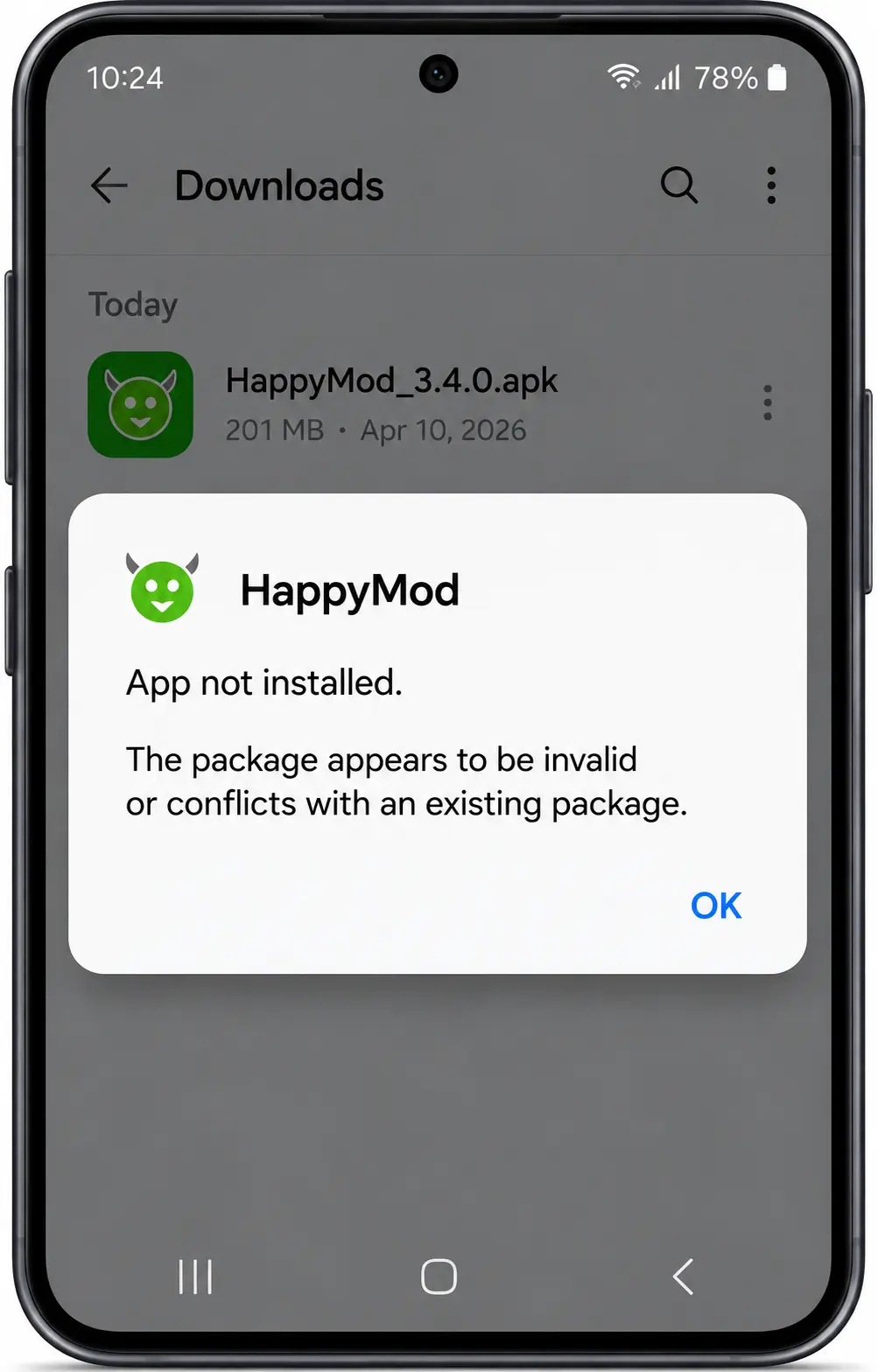
HappyMod Says “App Not Installed”
The “App not installed” message can appear when Android cannot complete the APK installation. Check the following areas one at a time.
Full guide: 9 fixes for App not installed and parse errors →
Allow the Installation Source
Android can require permission for the specific app opening the APK, such as your browser or file manager. Check whether that source is allowed under Install unknown apps. Only allow a source you intended to use.
Check for a Package or Signature Conflict
Android uses app signing to verify apps and updates. If an existing installation and the replacement APK are signed with different certificates, Android normally cannot install the new APK as an update over the existing one. This can happen when APK files come from different sources or builds.
Do not immediately uninstall the existing app if it contains data you need. Removing an app can also remove its locally stored data.
Check the APK File
If the APK download was interrupted or damaged, Android may not be able to install it. Delete the incomplete copy and download the file again from the source you intended to use. Also check that the file is actually an APK and that your device has enough available storage.
HappyMod Shows “Problem Parsing the Package”
A parse error means Android could not process the APK as an installable package. Possible causes include an incomplete or damaged APK, incompatibility with your Android version or device, or an invalid package.
Full guide: parse error fixes →
Start by downloading a fresh copy and checking the Android requirements. Simply renaming an APK does not repair a damaged or incompatible package.
HappyMod Has a Package or Signature Conflict
A package conflict is especially relevant when another version of the same app is already installed. If Android sees a different signing certificate, the replacement APK may not be accepted as an update. Before uninstalling anything, check whether you need to preserve app data.
Samsung Auto Blocker Stops HappyMod From Installing
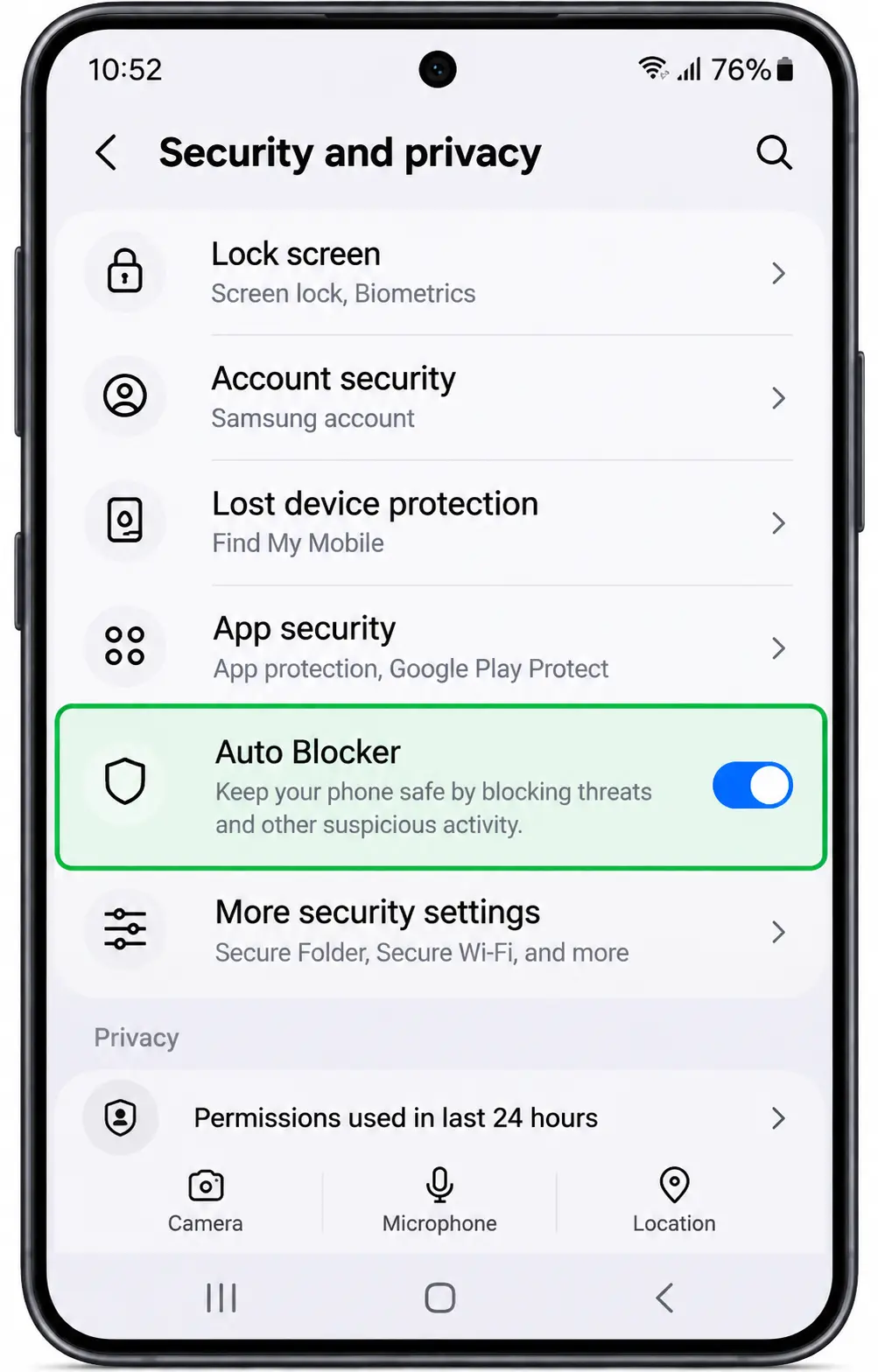
On supported Samsung Galaxy devices, Auto Blocker can prevent apps from sources outside Google Play or Galaxy Store from being installed. Check Settings → Security and privacy → Auto Blocker. Also check the Install unknown apps permission for the browser or file manager you are using.
HappyMod Download Errors
If HappyMod opens normally but an APK or MOD will not download, the problem is more likely related to the connection, storage, service availability, or the individual file.
HappyMod Download Won’t Start
First check whether other websites or apps can access the internet normally. Then check your connection, confirm available storage, try another HappyMod download, and retry the original download. If other downloads work but one specific file does not, the problem is more likely related to that individual listing or file.
HappyMod Download Is Stuck at 0%
A download that remains at 0% may not have started transferring data. Switch between Wi-Fi and mobile data if available and test the download again. If every HappyMod download remains at 0% while other internet services work, wait and retry later rather than repeatedly changing Android settings.
Full guide: HappyMod not downloading or stuck at 0% →
HappyMod Download Is Very Slow
Compare HappyMod with your normal internet connection. If all downloads and websites are slow, the connection may be responsible. If your internet works normally but HappyMod alone is slow, try another file to distinguish a general connection problem from a HappyMod or file-specific problem.
HappyMod Download Freezes Before Finishing
If a download begins but stops before completion, check that the connection remains stable, confirm available storage, cancel the failed download and start it again, and test another download. Do not try to install an APK that did not finish downloading.
HappyMod Stays on “Waiting for Queue”
A queued download may be waiting before the transfer begins. Give it a short time, then check whether another download starts normally. If multiple downloads remain queued while your internet works elsewhere, retry later.
HappyMod Says “Try Again Later” or “Servers Busy”
A server-style message does not automatically mean the entire HappyMod service is down. Check whether other internet services work, other areas of HappyMod load, and another HappyMod download works. If HappyMod alone continues to fail across multiple actions, waiting and trying again later is usually more useful than changing device security settings.
HappyMod Crash & Opening Errors
If HappyMod installed successfully but does not run correctly, the issue is different from an installation failure.
HappyMod Won’t Open
Restart the phone first. If HappyMod still does not open, force stop the app and launch it again. Then clear the HappyMod cache. If it still fails, check Android compatibility before considering a fresh installation.
HappyMod Keeps Crashing
If HappyMod opens and then repeatedly closes, check whether Android is up to date and whether the device has enough free storage. Clear the app’s cache before clearing its storage.
Full guide: 7 fixes when HappyMod keeps crashing →
If crashes continue after a fresh installation and the basic checks, the issue may involve the installed build or device compatibility.
HappyMod Opens to a Black or Blank Screen
If the app launches but displays a blank or black screen, force stop it and reopen it. If the screen remains blank, clear the cache and check whether the app behaves differently after restarting the device. Persistent problems after a clean installation can indicate a compatibility or build-specific issue.
HappyMod Freezes After Opening
If HappyMod opens but stops responding, avoid repeatedly tapping controls. Force stop the app, reopen it, and check whether the freeze happens again at the same point. If only one page or action freezes while the rest of HappyMod works, the problem may be limited to that content rather than the whole app.
HappyMod Update Errors
An update failure can happen even when the currently installed HappyMod version works normally.
HappyMod Update Won’t Install
Check that the new APK downloaded completely, is compatible with your Android device, matches the app you intend to update, and comes from the source you intended to use. If Android refuses to install it over the existing copy, a signing or package conflict may be involved.
Full guide: HappyMod update errors →
“App Not Installed” Appears During an Update
If HappyMod is already installed and “App not installed” appears only when updating, check for a package or signing conflict. Android normally expects an update to be signed consistently with the installed app. Do not assume uninstalling is automatically required.
Should You Uninstall the Old HappyMod Version First?
Only consider uninstalling after checking the file, compatibility, and possible signing conflict. Uninstalling an app can remove locally stored app data. If the current version works and the new version repeatedly fails, keeping the working version temporarily can be preferable to making unnecessary system changes.
HappyMod Crashes After an Update
If the problem started immediately after updating, restart the device and clear HappyMod’s cache. If the new version continues to crash but the previous version worked, the problem may be specific to the newer build or its compatibility with your device. See the HappyMod Old Versions guide for previous-version information.
HappyMod MOD Errors
Sometimes HappyMod itself works correctly, but a downloaded MOD does not. In that situation, troubleshoot the individual MOD, not the whole HappyMod app.
A MOD Installs but Its Features Don’t Work
Check the base app or game version, MOD version, Android compatibility, MOD description, required permissions, recent update information, and working reports when available. A MOD can install successfully without every advertised modification working correctly.
A MOD Crashes After Opening
If other HappyMod downloads work but one MOD crashes, the problem is more likely specific to that MOD. Check whether its version matches the supported app/game version and your Android environment. Avoid changing system-wide settings to solve a problem affecting only one MOD.
The Original App Works but the MOD Doesn’t
If the official/original app works normally on the same device while the modified version fails, the problem is less likely to be a general device failure. Check the MOD’s compatibility and version details instead.
A MOD Stops Working After the Game or App Updates
A MOD designed for one version of an app or game may not work correctly with a newer release. Check whether a MOD compatible with the new base version is available rather than assuming the old modification will continue to work.
What Does the HappyMod Working Rate Mean?
HappyMod Security & Installation Warnings
Some messages are security warnings rather than ordinary technical errors. Do not treat every security control as something that needs to be disabled.
Google Play Protect Warns About HappyMod
Google Play Protect checks apps, including apps obtained outside Google Play. If Play Protect displays a warning, read the exact message before deciding what to do. If Play Protect identifies an APK as potentially harmful, stop and verify the file and its source rather than automatically bypassing the warning.
Play Protect Blocks an APK
A blocked installation should not automatically be treated as a normal HappyMod error. Check what the Play Protect message says, where the APK came from, whether the file details are what you expected, and whether the requested permissions make sense. Do not disable security protection simply because an APK refuses to install.
HappyMod or a MOD Requests Unexpected Permissions
Permissions should make sense for the function being provided. Be cautious if an APK unexpectedly requests sensitive access that does not appear necessary for what the app or MOD is supposed to do. When a permission request seems unusual, verify the file before proceeding.
Every HappyMod 3.4.0 permission explained →
When You Should Stop Troubleshooting
- Play Protect reports that the app may be harmful.
- The APK requests permissions that do not make sense.
- The downloaded file type is not what you expected.
- The version, package details, or file information differs unexpectedly.
- The app repeatedly crashes after a clean reinstall and compatibility checks.
Troubleshooting should not require ignoring every Android security warning. If the problem appears security-related rather than technical, see our Is HappyMod Safe? guide before continuing.
HappyMod Troubleshooting FAQs
Why is HappyMod not working?
The cause depends on where it fails. Installation problems can involve the APK, permissions, compatibility, storage, or package conflicts. Download problems can involve the connection, service, or individual file. If HappyMod opens normally but one MOD fails, troubleshoot that MOD separately.
Does clearing HappyMod cache delete my data?
Clearing cache removes temporary files. It is different from clearing app storage or data, which can remove saved app information.
Why does one MOD fail while other HappyMod downloads work?
If HappyMod and other downloads work normally, the problem is more likely specific to that MOD. Check its version compatibility, description, permissions, update information, and recent working reports.
Is HappyMod down if I see “Try Again Later”?
Not necessarily. Check whether other HappyMod actions and your normal internet connection work. If HappyMod alone continues to fail across multiple actions, wait and retry later.
Should I disable Play Protect to install HappyMod?
Do not automatically disable or ignore Play Protect. Read the exact warning. If the APK is identified as potentially harmful, stop and verify the file and source before proceeding.
Final Answer
If HappyMod is not working, identify the failure stage before changing settings.
Installation error? Check the APK, install-source permission, compatibility, and package conflicts.
Download error? Check the connection, storage, individual file, and whether other HappyMod downloads work.
Crashing or not opening? Restart, force stop, clear cache, and check compatibility.
Update error? Check the replacement APK and possible signing conflicts.
One MOD not working? Troubleshoot that MOD rather than the entire HappyMod app.