
HappyMod for PC: Download and Install on Windows 10/11
If you’re looking for HappyMod for PC, you’re in the right place. It is an Android APK, so it does not install on Windows like a normal PC program. To use HappyMod on PC, you need an Android environment such as BlueStacks 5.
For this guide, I installed BlueStacks 5 on Windows, loaded the HappyMod APK through BlueStacks’ Install APK option, and opened HappyMod inside the emulator. The screenshots and videos below show the process on the PC used for this guide.
.exe file.
How to Download and Install HappyMod for PC
The process has two parts. First, install an Android emulator on Windows. Then install the HappyMod APK inside BlueStacks. The second part is the main HappyMod setup.
Install BlueStacks on Windows
BlueStacks provides the Android environment needed to run the HappyMod APK on a Windows PC. This prerequisite is straightforward, so the setup is kept compact here.
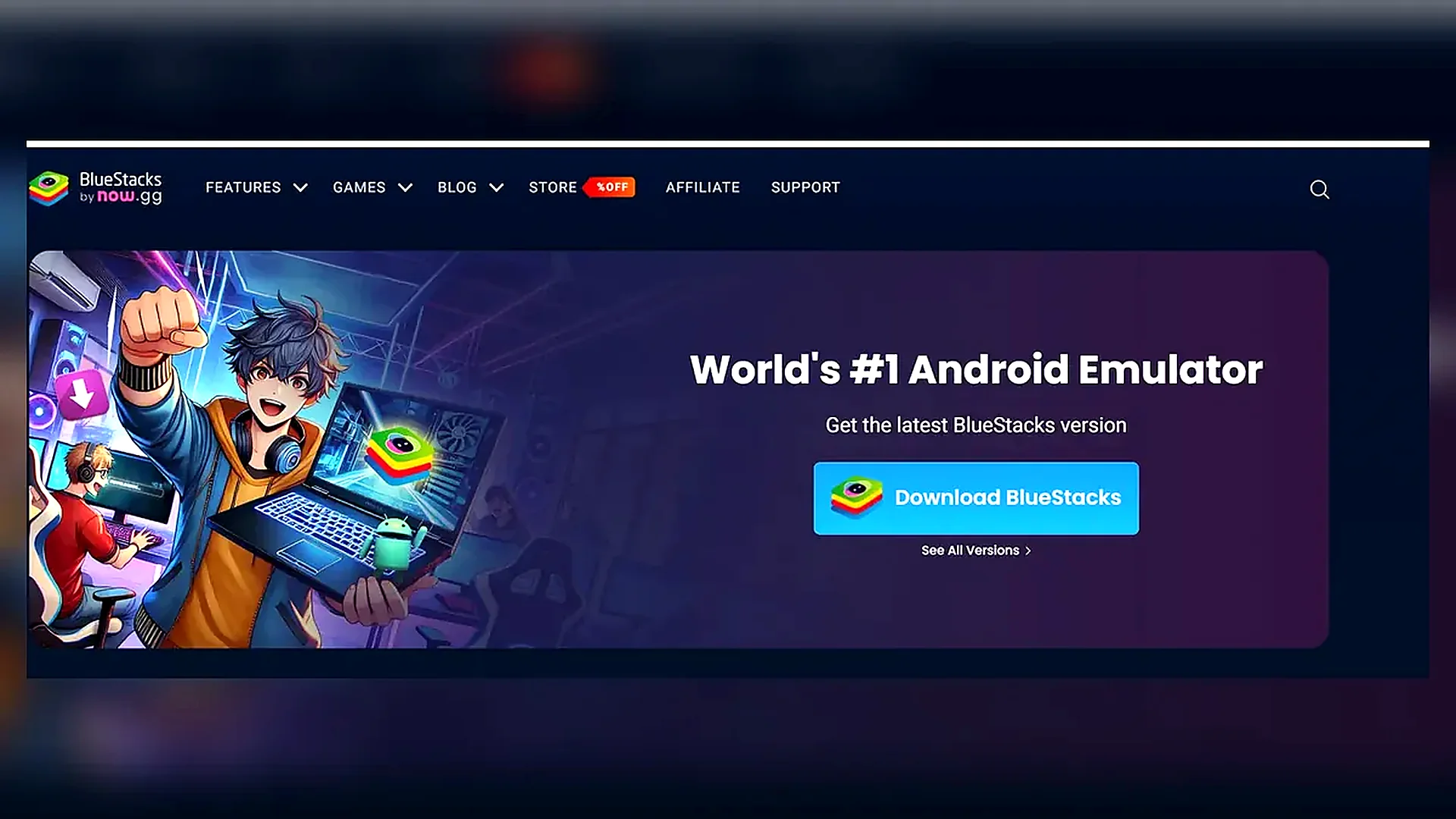
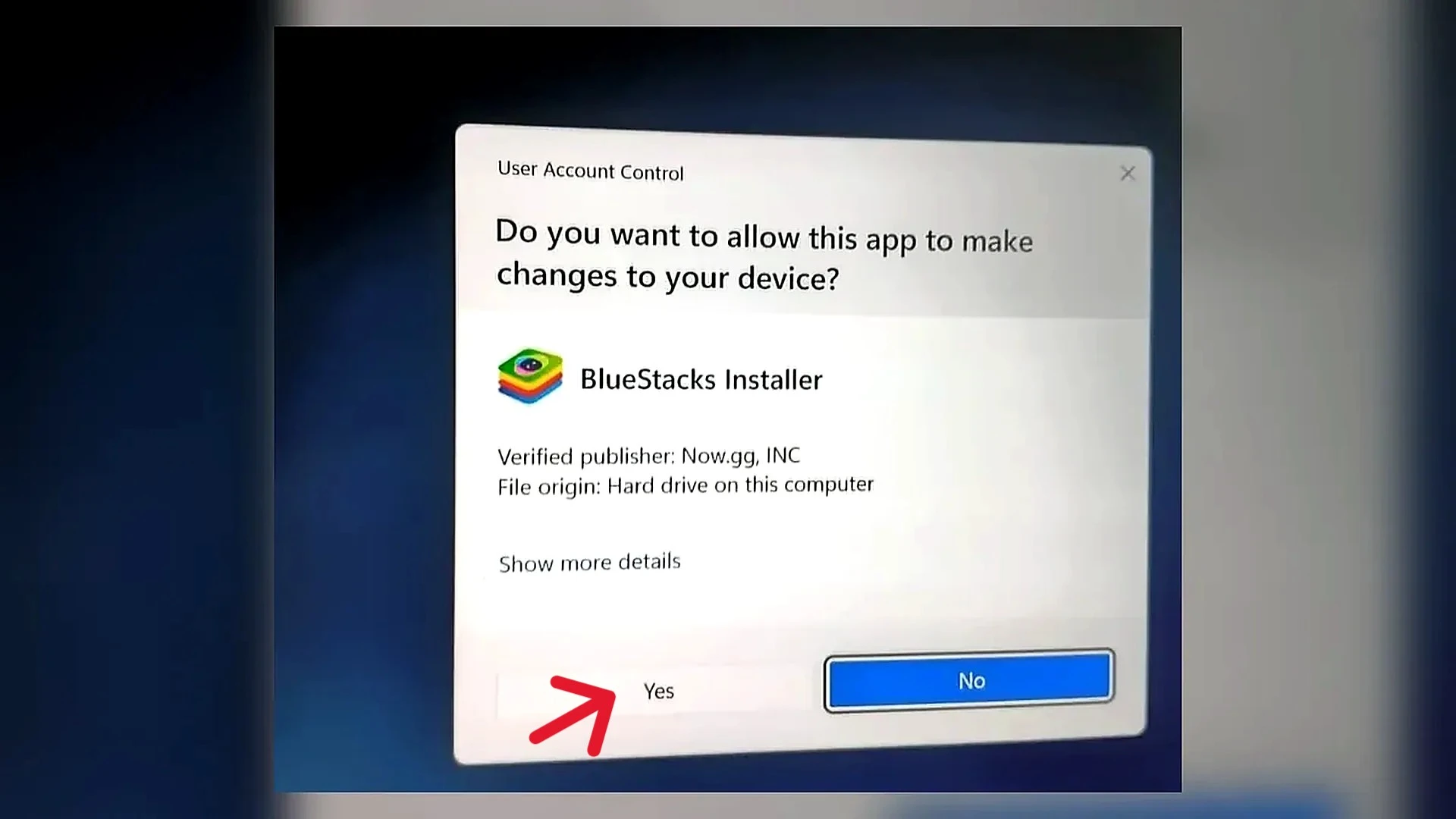
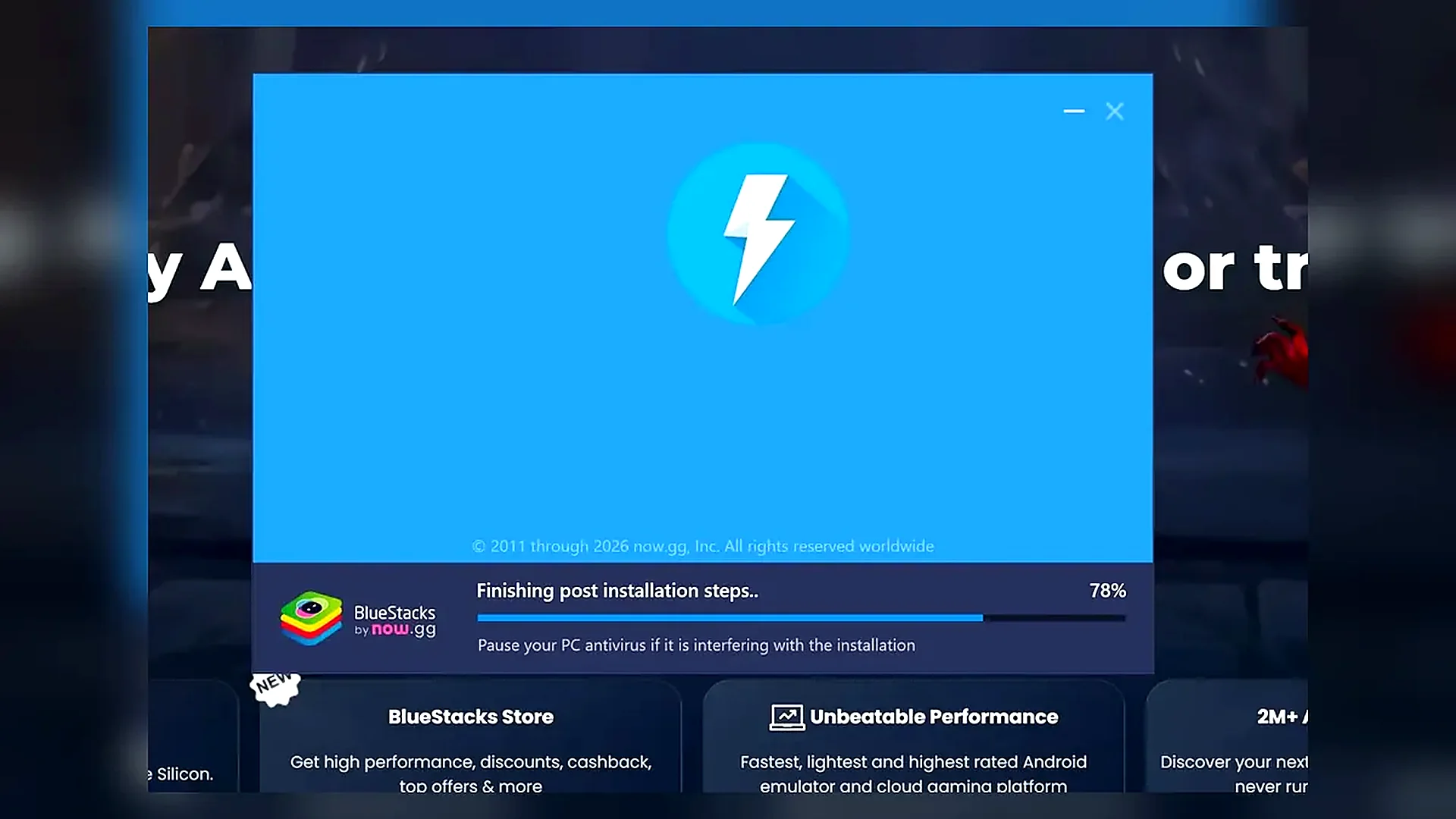
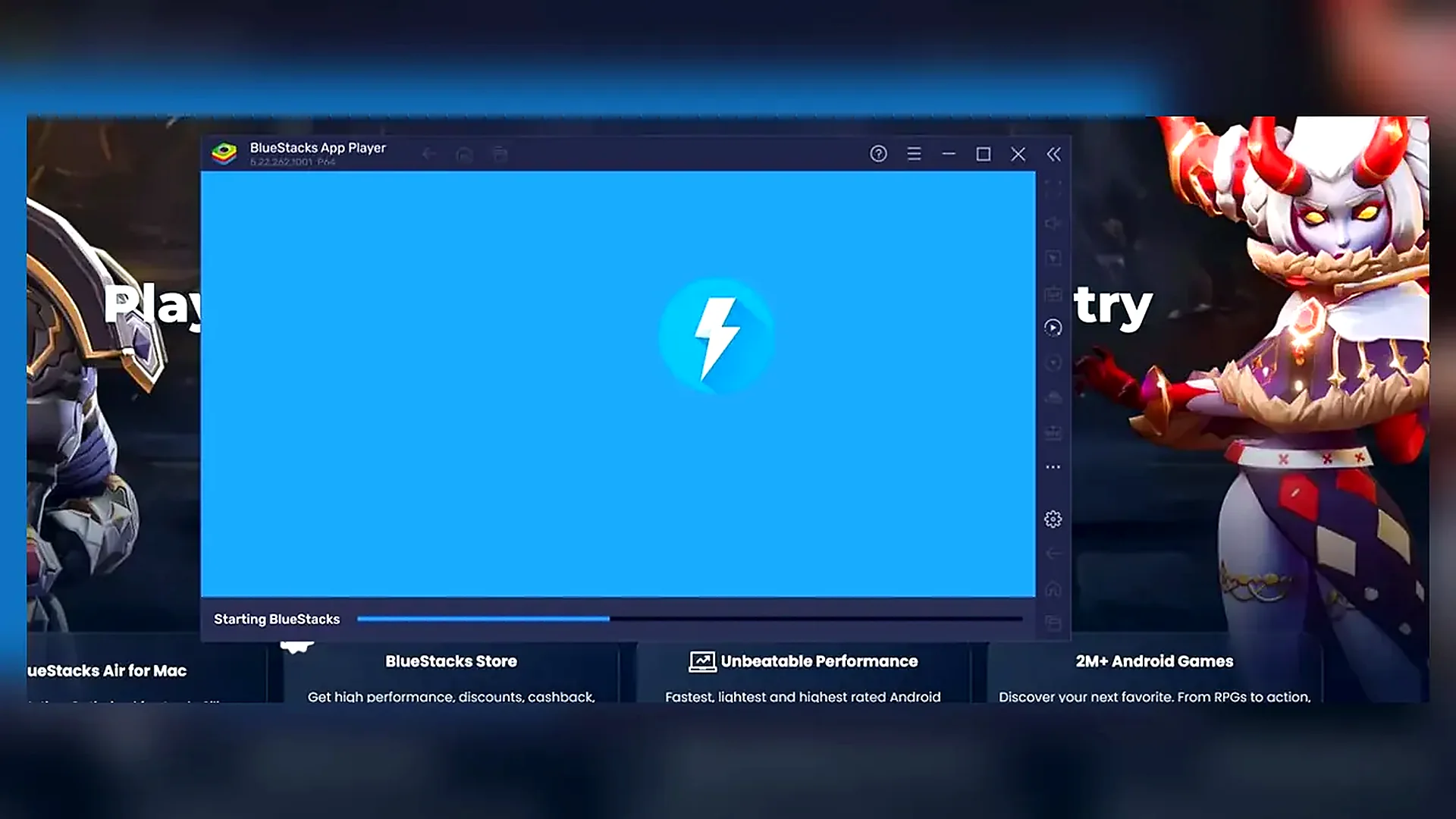
Watch: How to Install BlueStacks on Windows
This short video shows the BlueStacks download and installation process used before installing HappyMod.
Install HappyMod APK Inside BlueStacks
This is the main part of the guide. With BlueStacks already installed, download the HappyMod APK, load it through the emulator’s Install APK option, and then open HappyMod on Windows.
Download the HappyMod APK
Download the current HappyMod APK from latesthappymodapk and save it to your PC. Windows normally stores browser downloads in the Downloads folder.
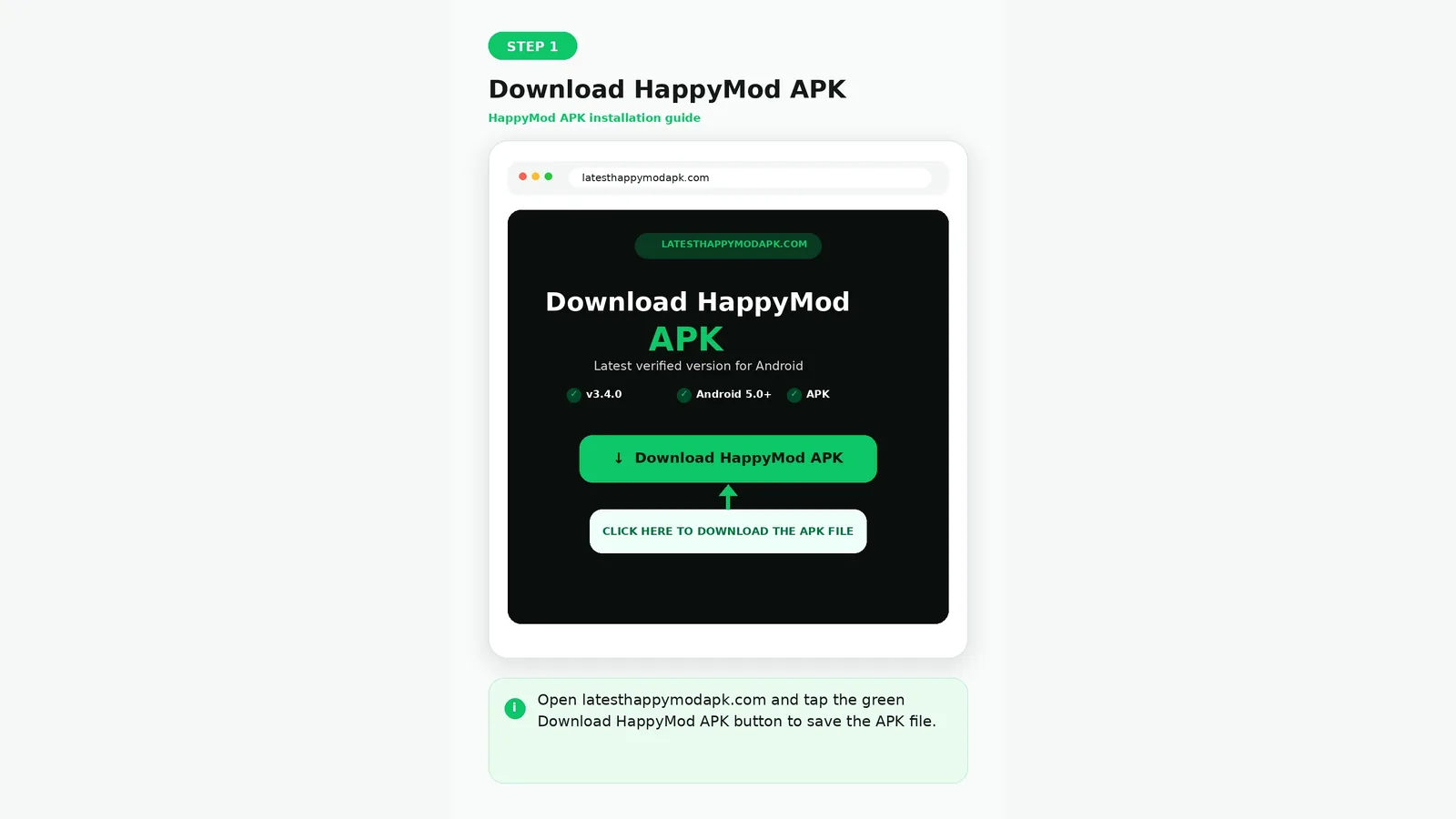
.apk extension.
You do not need an unexplained .exe or .msi file claiming to be HappyMod.
Open BlueStacks and Find Install APK
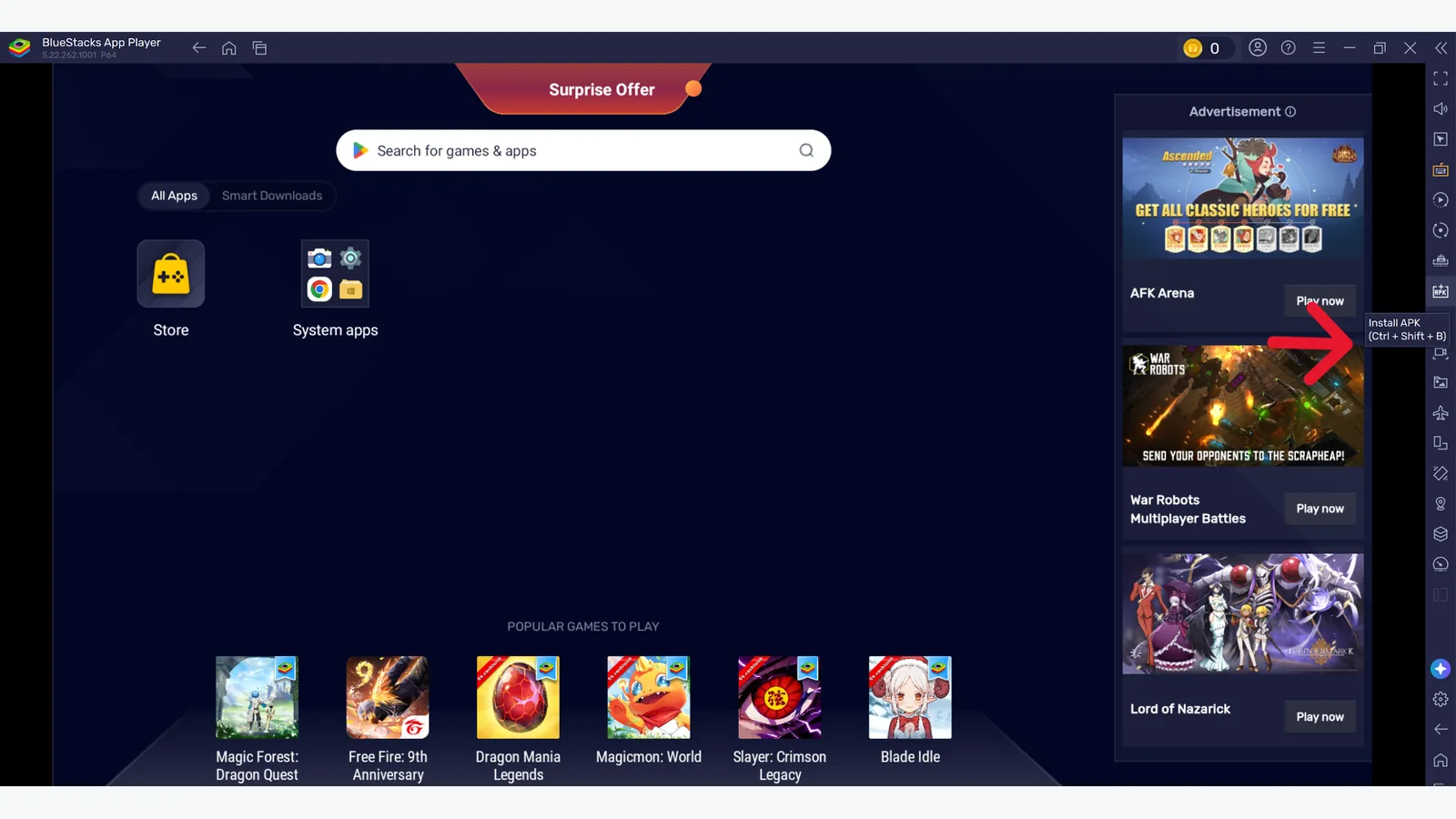
Open BlueStacks and look at the right-side toolbar. Find the Install APK option. In the screenshot below, the control is highlighted so it is easy to locate.
Select the HappyMod APK File
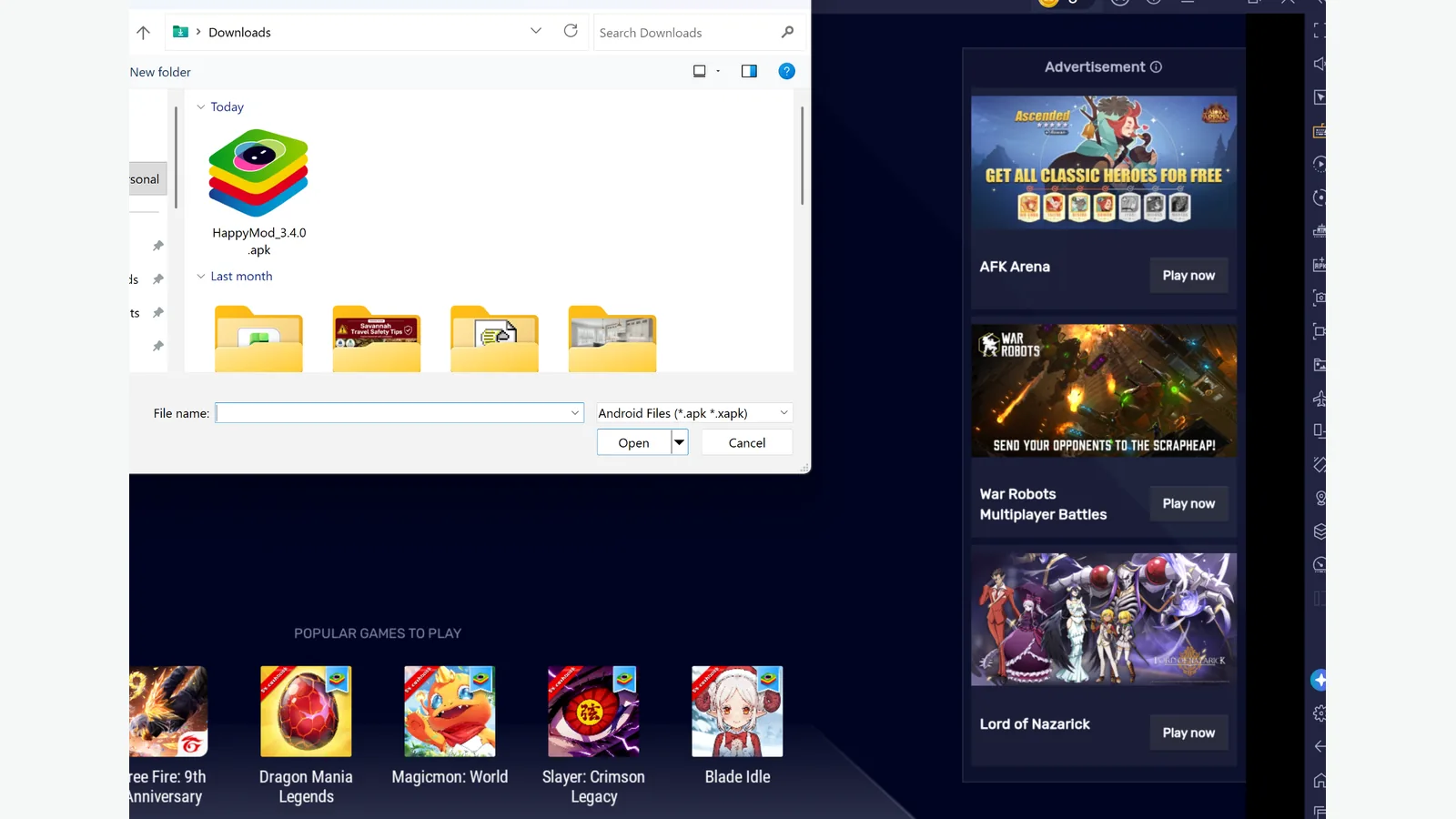
Click Install APK. When the Windows file picker opens, go to the folder where you saved the APK, select HappyMod_3.4.0.apk, and click Open.
Wait for HappyMod to Install
BlueStacks installs the APK inside its Android environment. When the installation finishes, the HappyMod icon appears on the BlueStacks home screen.
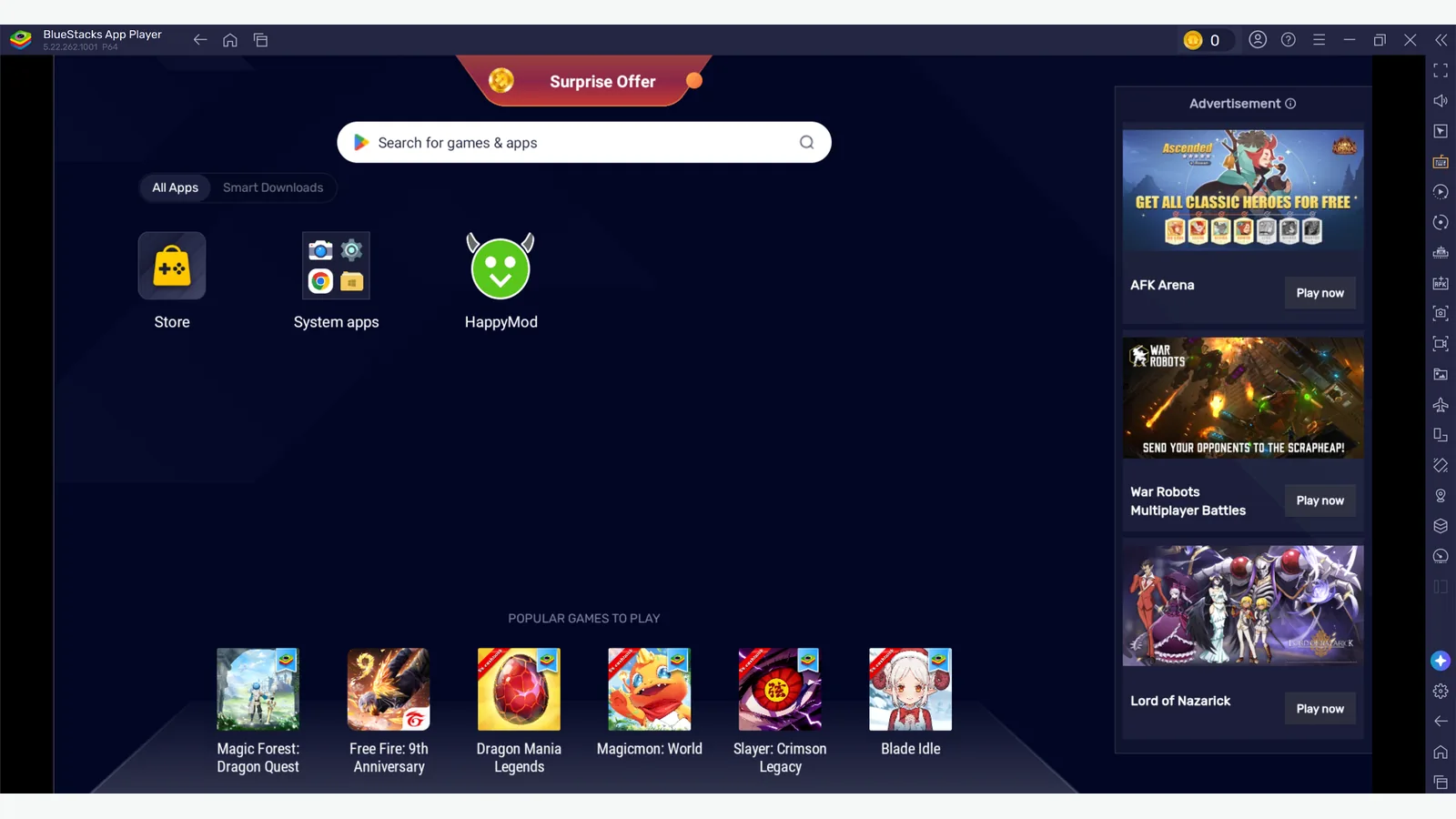
Open HappyMod
Click the HappyMod icon. The app may take a few seconds to initialize when it opens for the first time.
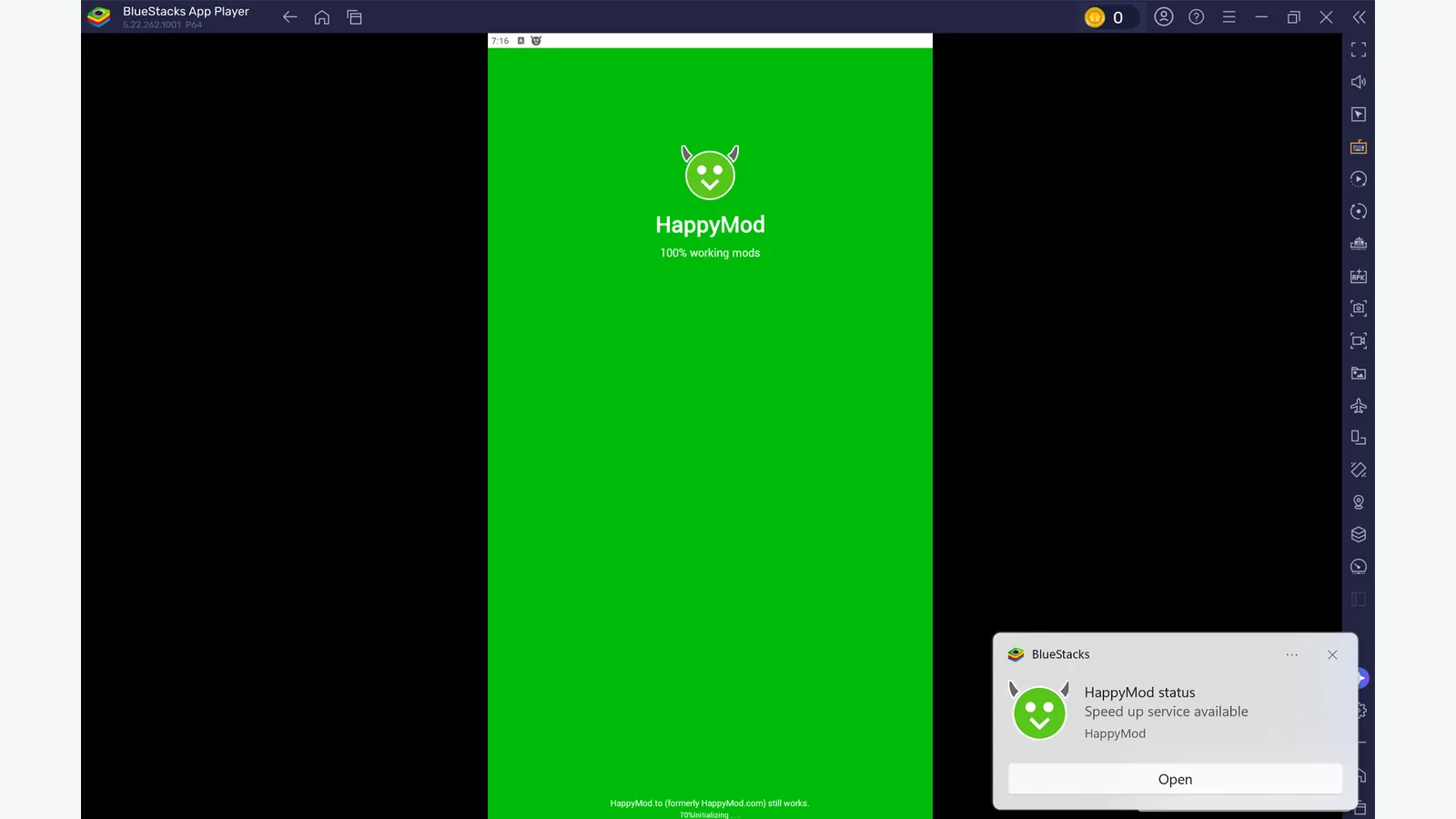
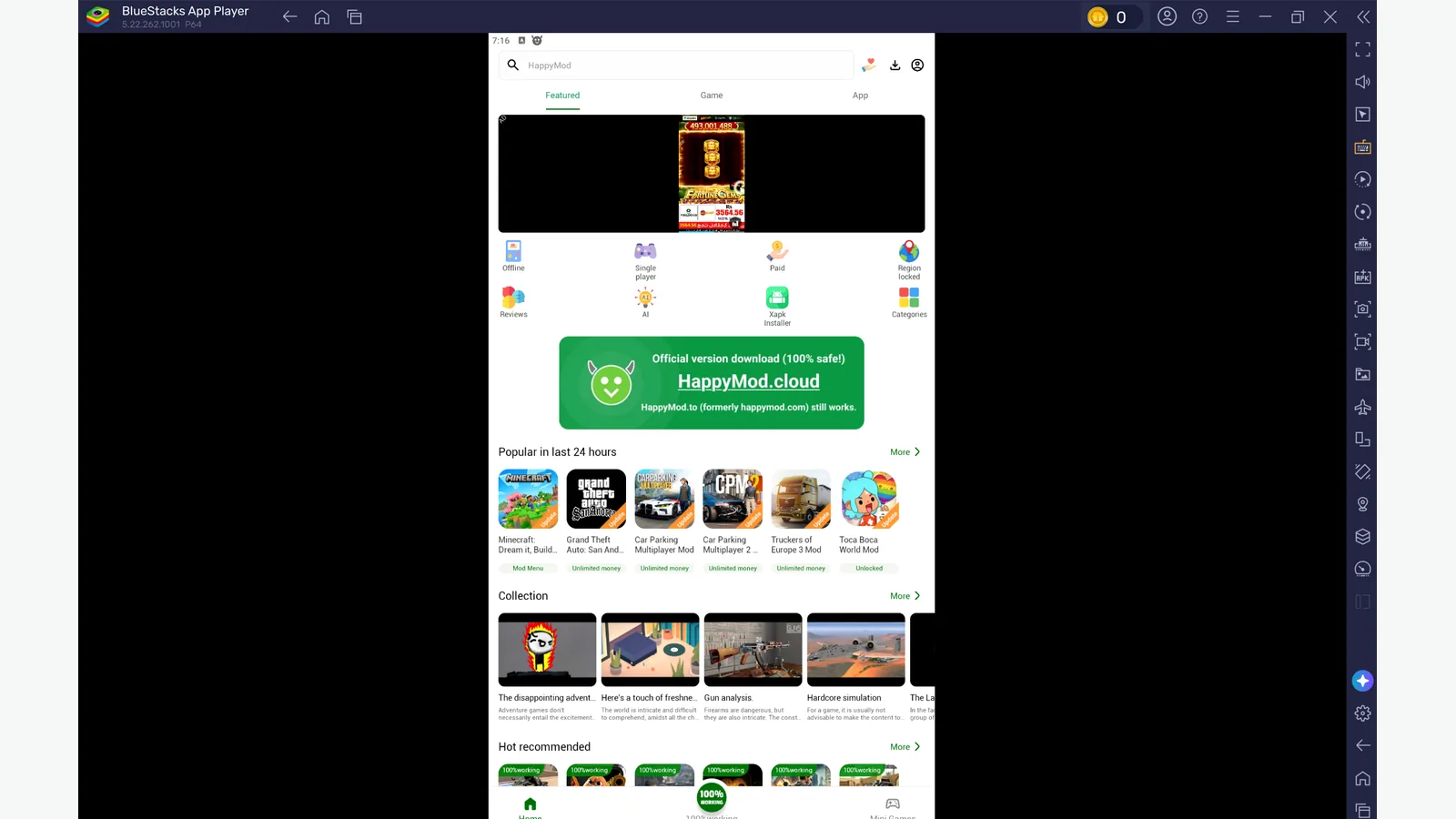
Confirm HappyMod Is Running on PC
Once the HappyMod interface loads, the setup is complete. HappyMod is now usable on Windows through BlueStacks, while technically remaining an Android APK running inside the emulator. This is the easiest way to download happymod for PC.
Watch: Install and Launch HappyMod APK in BlueStacks
This video shows the main HappyMod PC process: find Install APK, select the downloaded APK, install it, open HappyMod, and confirm that it runs inside BlueStacks.
How to Use HappyMod on PC
Once HappyMod is installed inside BlueStacks, the basic workflow is similar to using it on an Android phone.
Find an App or Game
Open HappyMod and use the search feature or categories to find the app or game you want.
Compare Available MOD Versions
Some apps and games can have several modified versions. Before downloading one, compare:
- app or game version;
- MOD features;
- Android compatibility;
- update information;
- community working reports;
- requested permissions.
A higher community working percentage does not automatically mean a MOD will work on your particular PC or emulator.
Download and Install the MOD
Choose the MOD version that matches what you need and start the download.
The MOD APK is installed inside the emulator’s Android environment. It does not automatically become a normal Windows program.
Open the App or Game
Launch the installed app or game from inside BlueStacks.
If it does not work correctly, check its version and Android compatibility before changing Windows or emulator settings.
Other Ways to Run HappyMod on PC
BlueStacks is the method used for this walkthrough, but it is not the only Android emulator that can install APK files.
| Emulator | Best For | APK Installation | Key Point |
|---|---|---|---|
| BlueStacks 5 | Most Windows users | Yes | Used for this walkthrough |
| LDPlayer | Android gaming | Yes | Gaming-focused alternative |
| MEmu Play | APK sideloading | Yes | Straightforward alternative |
| NoxPlayer | General Android emulation | Yes | Another option to consider |
There is usually no reason to install several emulators at once. Start with one and try an alternative only if you encounter compatibility or performance problems.
LDPlayer
LDPlayer is another Android emulator for Windows. Install it, launch its Android environment, and use its APK installation feature to select the HappyMod APK stored on your computer.
MEmu Play
MEmu is another option for running Android APKs on Windows. It supports manual APK installation, including an APK Install option and drag-and-drop installation.
NoxPlayer
NoxPlayer can also provide an Android environment on Windows. It may be worth trying if another emulator does not suit your hardware or a particular Android app.
What You Need to Run HappyMod on PC
There is no separate universal set of HappyMod PC system requirements because HappyMod itself runs inside an Android emulator.
The emulator determines most of the PC requirements.
| Requirement | BlueStacks 5 Minimum |
|---|---|
| Operating System | Windows 7 or later |
| Processor | Intel or AMD |
| RAM | 4 GB |
| Free Storage | 5 GB |
| User Access | Administrator |
| Graphics | Up-to-date graphics drivers |
BlueStacks recommends a stronger setup for better performance, including Windows 10 or later, 8 GB or more RAM, SSD storage, and hardware virtualization enabled.
Meeting an emulator’s minimum requirements only means the emulator should be able to run. A demanding Android game may need additional CPU, GPU, RAM, or storage resources.
Do You Need Virtualization for HappyMod on PC?
HappyMod itself does not require PC virtualization. The Android emulator may require it or perform better when it is enabled.
Depending on your computer, virtualization may appear as:
- Intel VT-x;
- Intel Virtualization Technology;
- AMD-V;
- SVM Mode.
BlueStacks recommends enabling virtualization for better performance, while some other Android emulators include it in their requirements.
Can You Run HappyMod on PC Without an Emulator?
For most Windows users today, an Android emulator is the practical way to run the HappyMod APK.
Microsoft previously offered Windows Subsystem for Android (WSA) on Windows 11.
However, Microsoft ended support for Windows Subsystem for Android and the Amazon Appstore. Starting March 5, 2025, they were no longer available through the Microsoft Store.
That makes older tutorials recommending WSA as the standard method for new Windows installations outdated.
Where Are HappyMod Downloads Stored on PC?
Windows and BlueStacks use separate storage environments.
HappyMod APK Downloaded Through Windows
If you download the HappyMod APK through Chrome, Edge, Firefox, or another Windows browser, it will normally appear in:
MODs Downloaded Inside HappyMod
After HappyMod is running inside BlueStacks, MODs downloaded through the app are generally stored inside the emulator’s virtual Android storage.
They do not automatically appear in your normal Windows Downloads folder.
HappyMod on PC vs Android Phone
HappyMod remains an Android application in both cases, but the environment is different.
| Feature | PC With Emulator | Android Phone |
|---|---|---|
| HappyMod format | APK | APK |
| Native platform | No | Yes |
| Emulator required | Yes | No |
| Keyboard and mouse | Yes | Limited |
| Larger display | Yes | Device dependent |
| Emulator overhead | Yes | No |
| APK compatibility | Can vary | More direct |
| MOD storage | Virtual Android storage | Android storage |
If your only goal is to use HappyMod, an Android phone provides the more direct setup.
Using HappyMod on PC makes more sense if you specifically want a larger screen, keyboard and mouse controls, desktop hardware resources, or emulator features.
Why Some MODs Work on Android but Not in a PC Emulator
Running an Android application inside Windows adds another compatibility layer.
A MOD that works on a physical Android phone is therefore not guaranteed to behave identically inside an emulator.
Android Version
Your emulator may use a different Android version from your phone. If an app or MOD expects another Android version, it may fail to install, open, or work correctly. If the current release is incompatible with your setup, check the HappyMod old versions guide before trying a different release.
CPU Architecture
Some Android applications include native libraries designed for particular processor architectures. Emulator translation and compatibility layers can affect certain apps and games.
Graphics Compatibility
Android games may depend on particular graphics APIs and rendering features. An emulator’s graphics configuration can affect whether a game displays or runs correctly.
APK Signing
If another version of an application is already installed with a different signing identity, Android may reject the new APK rather than installing it as an update.
Online-Service Restrictions
Some online games and services may restrict modified applications, emulator use, or both.
HappyMod PC Not Working?
Most PC problems fall into one of three areas: the emulator, the HappyMod APK, or the individual MOD.
| Problem | Quick Check |
|---|---|
| HappyMod won’t install | APK file, Android version, storage, conflicting installation |
| BlueStacks is slow | RAM, virtualization, CPU usage, graphics drivers |
| HappyMod won’t load | Emulator internet connection, restart app/emulator |
| MOD crashes | MOD version, Android compatibility, architecture, graphics |
| Can’t find download | Check emulator’s virtual Android storage |
Is HappyMod Safe to Use on PC?
Using HappyMod on PC involves several separate components, so a blanket “100% safe” claim would be misleading.
Check the Emulator
Download your Android emulator from its official developer website.
For the BlueStacks setup documented here, I downloaded the installer directly from BlueStacks and checked the Windows installer prompt before continuing.
Check the HappyMod APK
Before installing HappyMod, check details such as its version, package name, file type, file size, requested permissions, and installation behavior.
Check Individual MOD APKs
A MOD downloaded through HappyMod is another APK. The permissions, modifications, compatibility and behavior of one MOD do not automatically apply to every other file in the marketplace.
For the full risk and verification breakdown, read Is HappyMod Safe?
Is There an Official HappyMod App for Windows?
We could not verify a separate native HappyMod Windows application equivalent to the Android HappyMod APK.
The HappyMod application covered in this guide is an Android APK.
This is why searches such as HappyMod PC, HappyMod Windows, HappyMod for laptop, and HappyMod PC version normally involve running the Android APK through an emulator rather than installing a native Windows application.
Is There a HappyMod.exe?
The Android HappyMod application uses the .apk format. A Windows .exe
is a different executable format and should not automatically be treated as the same application
simply because a website uses the HappyMod name.
For the setup covered here, use the HappyMod Android APK inside BlueStacks or another compatible Android emulator.
Using a Mac Instead?
This guide focuses on Windows PCs.
HappyMod is still an Android APK on macOS and requires a compatible Android environment rather than installing as a normal native Mac application.
Frequently Asked Questions About HappyMod for PC
Can I Download HappyMod on PC?
Yes. You can download the HappyMod APK to a Windows PC, but you need a compatible Android environment such as BlueStacks to run it.
Does HappyMod Work on Windows 10?
Yes. HappyMod can run on Windows 10 through a compatible Android emulator.
Does HappyMod Work on Windows 11?
Yes. You can install the HappyMod Android APK inside a compatible Android emulator running on Windows 11.
Can I Install HappyMod Without BlueStacks?
Yes. BlueStacks is the method used for this walkthrough, but alternatives such as LDPlayer, MEmu and NoxPlayer can also install APK files.
Which Emulator Is Best for HappyMod?
I used BlueStacks 5 for this guide because its APK installation process is straightforward and well documented. The best emulator for your PC can still depend on your hardware and the Android apps or games you intend to run.
Does HappyMod Need Virtualization?
HappyMod itself does not require PC virtualization. Your Android emulator may require it or perform better when virtualization is enabled.
Can I Use HappyMod on a Laptop?
Yes. A Windows laptop can run HappyMod if it can run a compatible Android emulator.
Can HappyMod Run Directly on Windows?
Not as a normal native Windows application. The HappyMod APK requires an Android environment.
Is There a HappyMod PC Version?
We could not verify a separate native Windows edition equivalent to the HappyMod Android application. HappyMod for PC generally means running the Android APK through an emulator.
Do I Need a Google Account to Install HappyMod?
You do not need Google Play simply to sideload the HappyMod APK using BlueStacks’ APK installation feature. Individual emulator services, Google Play apps or particular games may separately require an account.
Final Verdict
HappyMod can be used on a Windows PC, but it runs as an Android application inside an emulator rather than as a native Windows program.
For this guide, I installed BlueStacks 5 on Windows and documented the emulator setup with original screenshots.
BlueStacks is a practical starting point, but LDPlayer, MEmu and NoxPlayer provide alternatives if you encounter compatibility or performance problems.
The PC setup is most useful when you specifically want a larger screen, keyboard and mouse controls, or emulator features. If you only want to use HappyMod and already have an Android phone, the direct Android setup is simpler.
For installation failures or crashes, use our HappyMod troubleshooting guide. For security and file-checking guidance, see Is HappyMod Safe?